This site is supported by our readers. We may earn a commission, at no cost to you, if you purchase through links.
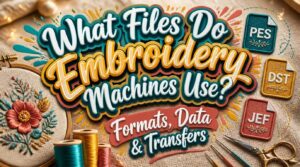
Most embroidery machines won’t touch a JPEG, PNG, or SVG—even if the design looks perfect on screen. That’s not a flaw. It’s by design.
Embroidery files don’t store colors as pixels; they store physical instructions: where the needle drops, when it lifts, how far it travels, and when the thread changes. A standard image file has none of that. Your machine reads stitch paths, not pictures.
Formats like PES, DST, JEF, EXP, and HUS each speak a slightly different dialect of that same language—and knowing which one your machine understands is what separates a clean embroidery run from a frustrating error screen.
Table Of Contents
Key Takeaways
- Embroidery machines don’t read image files—they need stitch-specific formats like PES, DST, or JEF that store exact needle coordinates, jump commands, and color change instructions.
- Every major brand runs on its own format, so loading the wrong file type means your machine simply won’t recognize the design.
- SVG and other image files describe shapes visually, but your machine needs physical stitch-by-stitch instructions that those formats can’t provide.
- Once you have the right format, you can transfer designs cleanly via USB, SD card, or Wi-Fi—just make sure your drive is FAT32 and files sit at the root level.
Embroidery Machines Use Proprietary File Formats
Embroidery machines don’t read image files the way your computer does — they need formats built specifically for stitching. Each brand has its own system, and using the wrong file simply won’t work. Here’s what you need to know about why that is, how these formats differ, and why a file like SVG won’t cut it.
Browsing a library of sewing machine embroidery designs already formatted for your brand takes the guesswork out of compatibility entirely.
Why Machines Need Specific Formats
Every embroidery machine runs on a precise sequence of commands — and that means it needs a file built specifically for it. These aren’t general image files. They store exact stitch paths, needle movements, and machine-specific commands your hardware expects.
Without that structure, format compatibility breaks down and your design won’t run. The right format guarantees error-free execution and protects design integrity stitch by stitch.
How Formats Differ From Regular Image Files
A regular image file — like a JPEG or PNG — stores pixel color data. Your embroidery machine can’t use that. It needs stitch coordinates, not colors mapped to a grid.
Embroidery formats store X and Y needle coordinates, command sequences, and a header with design metadata like size and stitch count. They’re closer to a script than a picture.
Why SVG Files Don’t Work Directly
SVG files describe shapes with paths and color fills — but your machine doesn’t read descriptions. It needs stitch-by-stitch instructions: exact X and Y coordinates, jump commands, tie-offs, and color change tokens. SVG has none of that. Add in missing hoop data, no thread palette mapping, and firmware that rejects non-stitch formats, and you’ll see why conversion software is a must.
SVG describes shapes; embroidery machines demand stitch-by-stitch instructions — coordinates, jump commands, and color tokens SVG simply cannot provide
Additionally, missing viewBox attributes can cause graphical elements to be hidden or misaligned.
Most Common Embroidery File Formats Explained
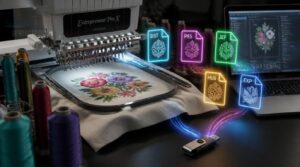
Each embroidery machine brand speaks its own language, and that language is the file format. If you load the wrong one, your machine simply won’t recognize it. Here are the five formats you’re most likely to encounter.
Pairing the right format with the right design matters too—browsing machine embroidery patterns organized by file type can save you a lot of frustrating trial and error.
PES Files for Brother and Baby Lock
PES is the native format for Brother and Baby Lock machines. It stores precise stitch coordinates, needle up and down commands, trim commands, and jump stitches.
PES files also include RGB color mapping to match thread colors accurately, preserve color sequences across edits, and embed design origin data so your design aligns correctly on hooped fabric every time.
DST Files for Commercial Machines
DST is the go-to format for commercial embroidery production. It’s a binary Tajima format that encodes every stitch into compact 3-byte records, keeping file sizes small and transfer speeds fast. A 512-byte header stores key metadata — design name, hoop size, and total stitch count — giving machines everything they need before the first needle drops.
One thing to know: DST doesn’t store color data. Thread colors get assigned directly on the machine or through a separate color chart. That’s actually a feature, not a flaw — it keeps the format lean and compatible with machines from Tajima, Barudan, and many other commercial brands.
JEF Files for Janome Machines
JEF is Janome’s native file format, and it goes well beyond basic stitch data. Every needle coordinate, jump stitch, and color change command is baked right in — including a color map that controls the exact layering order when your design stitches out.
Some Janome models also support JEF+, which lets you scale, rotate, and reposition individual design elements before committing to stitch.
EXP Files for Bernina Machines
Bernina machines run on the EXP file format, but there’s a catch — each design isn’t one file; it’s three. You need the EXP stitch file, an INF color mapping file, and a BMP preview image.
Miss any one of them, and your machine won’t load the design. Copy all three together onto your Bernina USB stick, and you’re ready to stitch.
HUS Files for Husqvarna Viking
Husqvarna Viking machines run on the .HUS file format — a binary format that stores stitch coordinates, color change markers, and jump stitch commands alongside a header with design name and size. Your machine reads that header first.
If the firmware isn’t compatible with the design version, it won’t load correctly. Always match your HUS file to your machine’s firmware.
What Data is Stored Inside Embroidery Files
An embroidery file is more than just a pretty pattern — it’s a set of precise instructions your machine reads line by line. Every stitch, pause, and color change is written into the file before the needle even touches the fabric. Here’s exactly what’s packed inside.
Needle Up and Down Commands
Every stitch command in an embroidery file starts with a simple decision: needle up or needle down. Needle up activation lifts the needle to a safe travel position, letting the machine move across fabric without sewing. Down hold function keeps the needle engaged so you can pivot corners with precision.
Sensors handle this automatically, but manual override gives you full control during pauses.
Color Change Instructions
Color change instructions are more than a pause in the action — they’re precisely timed signals that tell your machine exactly when and where to swap thread. Each color change command encodes a stop point, raises the needle, and references exact X and Y coordinates so the new color starts right where it needs to.
Automatic color switching manages this without you touching a thing, while manual thread changes put you in control for critical color matches. Some formats also include density adjustment points before and after each change to keep tension smooth and prevent gaps. Validation checks in your digitizing software confirm every color stop lines up correctly before you stitch.
Jump Stitch and Stitch Count Data
Once color change data is handled, your file moves on to tracking movement between stitch areas. Jump stitch data records every time the needle travels without sewing. Your jump count shows how many of these moves exist, while jump length analysis measures how far each one travels. High counts slow your machine and leave messy thread tails on the back.
Auto trim settings can catch and cut shorter jumps automatically, saving you cleanup time. Combine that with jump path optimization — rearranging stitch order to group nearby elements — and your stitch efficiency ratio improves. Less travel means faster runs and cleaner results.
Stitch Length and Width Parameters
Your file also stores stitch length and width parameters for every element in the design. Length is measured in millimeters — usually between 1.0 mm and 4.0 mm. Width controls how far zigzag and satin stitches spread.
Thicker threads need shorter lengths. Adjust in 0.5 mm steps. Wrong settings cause puckering, gaps, or thread breaks.
How to Get The Right File for Your Machine
Getting the right file starts with knowing what your machine actually accepts. From there, it’s about knowing where to find designs and what to do when the format isn’t quite right. Here’s what you need to cover all three.
Checking Your Machine’s Supported Formats
Start with your machine’s manual — it includes a manual format list that tells you exactly which file types the model is compatible with. Don’t guess. Manufacturers also publish a compatibility chart on their product pages if you’ve misplaced yours. Check both.
Also review your firmware compatibility notes. Updates sometimes add or drop supported formats. Your region’s settings matter too, since some machines handle formats differently by market.
Converting Files With Digitizing Software
Once you know your machine’s format, digitizing software takes care of the rest.
It runs a format conversion process that maps your design’s stitch paths, underlay patterns, and color mapping into a machine-ready file. It also applies stitch density adjustment for your fabric type, validates the output through simulation validation, and uses export plugins to deliver the exact file format your machine needs.
Where to Download Embroidery Design Files
Once you’ve converted your design, you need a source to pull from.
Free design sites like Emblibrary and Urban Threads offer thousands of downloads in PES, DST, and JEF formats. Paid marketplaces give you previews showing stitch count and hoop size before you buy.
Brand stores publish machine-tested files. Subscription libraries refresh their catalogs regularly, so you won’t run dry.
How to Transfer Embroidery Files to Your Machine
Getting your design file onto your machine is the last step before the stitching starts. Most machines support a few different transfer methods, so you’ve got options depending on your setup. Here’s how each one works.
Using a USB Flash Drive
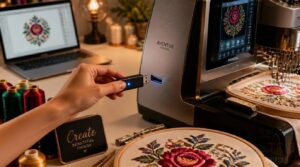
A USB flash drive is the most reliable way to move embroidery designs from your computer to your machine.
Format your drive to FAT32 or exFAT — most machines won’t read NTFS. Stick to 32 GB or less for older models.
Place your design files at the root level. Always safely eject before pulling the drive out to avoid corrupted files.
Using SD Cards
Swapping to an SD card is just as simple as using a USB drive — and many mid-range machines prefer it. Most machines support SD and SDHC cards up to 32 GB, so stick within that range.
Format the card to FAT16 or FAT32, keep the card unencrypted, and store your design files in the root directory using clean, space-free file names.
Wi-Fi and Cloud-based Transfer Options
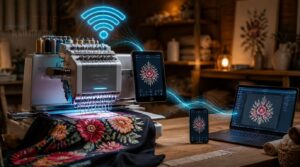
Wi-Fi takes file transfers to a different level. With direct Wi-Fi connectivity, your machine joins your home network and receives designs straight from your computer or phone — no card or cable needed. Transfer speeds usually range from tens to hundreds of Mbps depending on your network.
Cloud sync features go further. Upload a design from your computer, and it appears on your machine automatically. Many brand apps support device pairing and secure TLS encryption, keeping your files protected in transit.
Frequently Asked Questions (FAQs)
Do embroidery machines use SVG files?
Think of SVG files like a blueprint — useful for design, but not ready to build. Embroidery machines can’t read SVG directly. You must convert them into a machine format first.
Can embroidery files get corrupted during transfer?
Yes, embroidery files can get corrupted during transfer. Improper USB ejection is the most common cause. You can run a checksum comparison to verify the transferred file matches the original before stitching.
How do I create my own embroidery designs from scratch?
Start with digitizing software that converts your artwork into stitch paths. Use manual digitizing for clean results, set proper thread density, add underlay techniques, adjust pull compensation, and choose the right stabilizer before stitching.
What happens when a file format becomes outdated?
When a format goes dark, it’s like a road wiped off the map. Software support drops, old files lose readability, and your designs risk becoming permanently inaccessible without timely migration.
How large are typical embroidery design files in size?
Most files land between 5 KB and 1 MB. Simple designs stay small. Dense fills and multiple colors push sizes higher. Storage is rarely an issue — even large collections fit easily on a USB drive.
Conclusion
Funny how a design that looks completely perfect on screen means absolutely nothing to a machine that can’t read pixels.
Once you understand what files embroidery machines use—and why each format carries the needle-level instructions your machine actually needs—the frustration disappears.
You’re not fighting the machine anymore. You’re speaking its language. Match the format, transfer it cleanly, and the only thing left between you and a perfect stitch run is pressing start.