This site is supported by our readers. We may earn a commission, at no cost to you, if you purchase through links.
You’ve spent hours digitizing a design, only to load it onto the machine and watch it choke on a file it can’t read. That mismatch trips up more embroiderers than dull needles or thread breaks combined. A DST file that runs perfectly on a Tajima will confuse a Brother machine expecting PES, and the reason comes down to how each brand encodes stitch instructions.
There’s no single universal embroidery file format, but understanding what separates DST, PES, JEF, and the rest turns frustration into a straightforward decision. Once you know what each format stores, and why, matching file to machine gets a whole lot easier.
Table Of Contents
- Key Takeaways
- What is an Embroidery File Format?
- Expanded Vs Machine-Specific Formats
- Which Format Matches Your Machine Brand
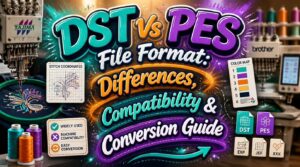
- DST Vs PES: Key Differences
- Converting Images and Files for Embroidery
- Choosing The Right Format for Your Project
- Fixing Embroidery File Compatibility Issues
- Frequently Asked Questions (FAQs)
- Conclusion
Key Takeaways
- There’s no single universal embroidery file format, so matching the right file type to your machine’s brand is the key to avoiding stitching errors.
- DST works as the closest thing to a universal format since it runs on most commercial machines, but it strips out color data and leaves you relying on machine defaults.
- Brand loyalty drives format choice: Brother and Baby Lock use PES, Janome uses JEF, and Tajima along with other commercial machines rely on DST.
- Always keep a native, editable file as backup before converting to a machine-specific format, since conversions can introduce color mismatches, density loss, or other errors.
What is an Embroidery File Format?
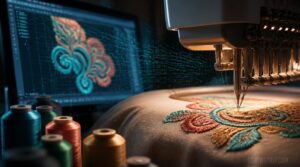
An embroidery file format is more than just a save type; it’s the language your machine needs to turn artwork into actual stitches. Before you can pick the right one, you’ll want to understand where designs come from and how they get translated into something a needle can follow.
If you’re curious how those designs come together, this guide to embroidery file formats breaks down which types work best for different machines and projects.
Here’s what’s happening behind the scenes, from stitch data to the software that makes it all work.
Stitch Data Explained
Every embroidery design boils down to stitch data: coordinates, stitch types, and sequencing instructions telling your needle where to go. Think of it as the file’s DNA.
Stitch data is an embroidery design’s DNA: coordinates, stitch types, and sequencing that guide every needle movement
Machine-readable formats package this data differently, some storing color info and previews, others stripping it down to bare movement commands. That’s why file conversion, compatibility, and stitch accuracy all hinge on understanding what’s actually stored beneath the surface.
Vector Vs Raster Origins
Before stitch data exists, your artwork starts as either vector graphics or raster images. Vectors use mathematical shapes, scaling cleanly with no pixelation. Rasters rely on pixel grids, losing sharpness when enlarged.
- Vectors offer resolution independence
- Rasters need higher DPI for scaling quality
- Format origins affect conversion accuracy
- Vectors suit logos; rasters suit photos
- Both require digitizing for stitch file compatibility
Role of Digitizing Software
Neither vector nor raster art means anything to a machine until digitizing software steps in. It controls stitch type selection, density adjustment, and underlay settings, converting artwork into real stitch data.
Auto tracing speeds things up, while color mapping assigns thread values. The output becomes a usable embroidery file format—whether that’s DST or PES depends on your machine.
Expanded Vs Machine-Specific Formats
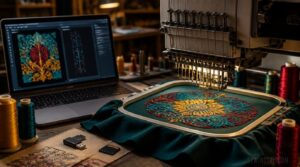
Not every embroidery format plays by the same rules, and that’s the first thing you’ll notice once you start moving files between machines.
Some, like DST and EXP, keep things bare-bones with just the stitch data, while others pack in color info, thumbnails, and brand-specific settings.
Here’s how the major formats stack up against each other.
DST and EXP Basics
Think of DST and EXP as the plain-text workhorses of embroidery: minimal data, maximum reach. DST stores coordinates and jump/trim codes, no color names attached. EXP adds color-stop markers Melco machines read directly.
| Format | Color Data | Best For |
|---|---|---|
| DST | None | Wide compatibility |
| EXP | Basic stops | Color workflows |
Small file size means faster transfers, but you’ll still need machine defaults for accurate color.
PES, JEF, ART Explained
Brand loyalty shows up fast once you dig into PES, JEF, and ART. PES (Brother/Baby Lock) maps color palettes to thread codes and checks hoop size compatibility before stitching. JEF preserves Janome stitch types and densities. ART favors Tajima design editing flexibility with underlay data.
If you’re unsure which format fits your machine, this guide to embroidery file format converters breaks down how each preserves color, density, and design details.
| Format | Key Strength |
|---|---|
| PES | Color mapping |
| JEF | Stitch type preservation |
| ART | Editing flexibility |
| DST | Universal reach |
| EXP | Color stops |
Machine compatibility should be confirmed prior to purchase to avoid file format incompatibility issues. Machine compatibility verification is essential for smooth design usage across different embroidery systems.
HUS and VIP Overview
Two names, two philosophies. HUS leans on tight Hardware Utilization Stats for precise Stitch Execution Control on Husqvarna Viking machines, while VIP brings strong VIP Color Management to Enterprise Design Workflow projects.
| Format | Strength | Best For |
|---|---|---|
| HUS | Stitch control | Production runs |
| VIP | Color libraries | Large-scale jobs |
Cross-Brand Compatibility often means running both through embroidery software conversion before stitching.
Data Stored in Each
Every format packs the same essential ingredients differently: header structure, stitch coordinates, color blocks, metadata, and preview data.
| Format | Color Info | Preview |
|---|---|---|
| DST | None | No |
| EXP | Trim points | No |
| PES | Full palette | Yes |
DST strips things bare. PES loads up on stitch data and color information, aiming for a friendlier, near-universal format experience.
Which Format Matches Your Machine Brand
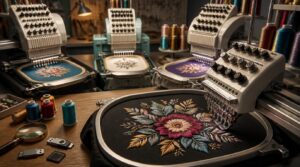
Every embroidery machine brand plays by its own rules, and knowing which format yours speaks can save you a world of frustration. Your machine’s manual might list a format code, but matching brand to format is easier than it sounds once you know the pattern. Here’s how the major players break down.
Brother and Baby Lock Use PES
Brother and Baby Lock share more than a logo—they share PES, the format built for both families. PES stores stitch data, color sequences, and a handy preview.
- Works across Brother/Baby Lock lines
- Edits smoothly in PE Design
- Preserves color order and stops
- Requires hoop size matching
- Makes PES file sharing easy
Janome Uses JEF
Ask any Janome owner what keeps their designs running true, and they’ll say JEF. This format controls stitch data, hoop coordinates, and color stops built for Janome machine support, from Memory Craft to Horizon models.
JEF Plus editing adds merging flexibility, though older machines still want standard JEF. That’s why a solid JEF export workflow, matched to correct hoop settings, keeps JEF file compatibility rock solid.
Tajima and Commercial Machines Use DST
Walk into any production shop running Tajima, Barudan, or ZSK, and you’ll find DST as the shared language. This Data Stitch Tajima format skips embedded color names, relying instead on color stop sequencing and stitch coordinate precision for consistent output.
That’s the backbone of commercial machine compatibility, making DST the standard for production workflow standardization across brands.
Pfaff and Viking Formats
Pfaff and Husqvarna Viking share deep roots under SVP Worldwide, so their formats—VIP, VP3, and newer native versions—often overlap. Firmware update compatibility lets machines read sister files, though results vary. Watch for:
- Hoop size alignment to prevent clipping
- Color palette mapping shifts from thread catalogs
- Stitch density settings altered by conversion utility adjustments
Always test-stitch before trusting a "universal format" claim.
DST Vs PES: Key Differences
DST and PES might both carry stitch instructions, but they were built with different priorities in mind. One favors a lean, no-frills approach, while the other packs in extra detail your machine can actually see. Here’s where they really part ways.
File Size and Data Stored
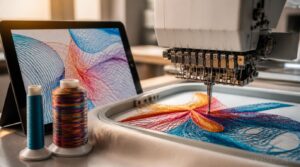
DST stays lean, storing only stitch coordinates and machine commands, while PES adds thumbnails and thread data, inflating size.
| Format | Typical Size (5×7") | Extra Data |
|---|---|---|
| DST | Under 50 KB | None |
| PES | 100–150+ KB | Previews, color |
Stitch count and color changes drive most growth—dense fills mean bigger files, regardless of format compression efficiency.
Color Information Handling
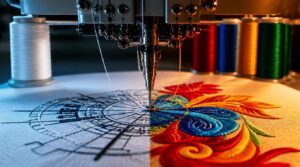
Color channel management splits sharply here. DST holds bare stitch coordinates—no color tagging metadata, no palette, just numbers. PES embeds thread color management directly: color sequence, palette references, even spot colors for brand matching.
| Format | Color Data | Accuracy |
|---|---|---|
| DST | None stored | Operator-dependent |
| PES | Full palette | High |
That gap affects design accuracy and gradient shading effects during reproduction, since DST leans on machine defaults rather than embedded color conversion standards.
Best Use Cases for Each
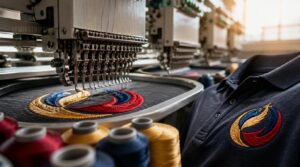
That gap in color handling points straight to when each format earns its keep.
| Format | Best For | Why |
|---|---|---|
| DST | Commercial multi-heads, patches design | Universal read, tiny size |
| PES | Logo embroidery, monogramming | Palette preserves brand color |
Choose DST for production runs, PES for detailed logo work, and lean on EXP or JEF when Melco or Janome machines handle applique or 3D puff embroidery projects requiring exact density.
Converting Images and Files for Embroidery
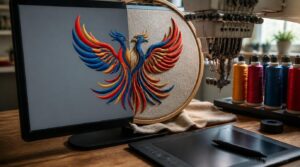
A JPEG or PNG logo won’t stitch itself out, no matter how sharp the image looks on screen. Getting from a flat picture to a working design means understanding what digitizing actually changes along the way. Here’s what you need to know before you convert anything.
Turning JPEG Into Stitch Files
Ever tried stitching a photo straight off your phone? It won’t work without prep. Start with image cleanup, then apply color reduction to simplify thread mapping.
- Resize the canvas
- Boost contrast
- Save as PNG or TIFF
Run a stitch preview before hooping. Check hoop alignment early, since converting artwork carelessly wastes thread and time during design testing.
Native Formats Vs Machine Formats
Think of native files as your working blueprint and machine formats as the finished blueprint. Native file formats keep full editability; machine-specific formats strip that down for stitching only.
| Native Formats | Machine Formats |
|---|---|
| Editable | Fixed |
| Larger size | Smaller size |
| Software-locked | Brand-specific |
| Preserves history | Preserves stitches |
| Needs export | Ready to sew |
Data preservation favors native; conversion accuracy determines your final result.
Software Tools for Conversion
Image to Stitch and Vector to Stitch engines drive most digitizing software today, converting raw art into DST, PES, JEF, or EXP output.
Look for tools offering:
- Batch processing for bulk conversions
- Color management with palette matching
- File validation before export
- Preview windows for stitch density
- Custom naming for organized batches
Software quality varies wildly, so test conversion accuracy before committing your production workflow.
Common Conversion Pitfalls
Even the best software stumbles on conversion. Color mapping errors creep in when palettes force merges, while stitch density loss flattens fine shading.
Command truncation skips jump stitches, and layer ordering issues overlap threads unexpectedly. Weak preview tool limitations hide these flaws until fabric’s already under the needle—so scrutinize every Universal Embroidery File Format output, whether DST or PES, before committing to a full production run.
Choosing The Right Format for Your Project
Picking a file format isn’t just about what your machine will open, though that’s where it starts. Your design’s detail level, the fabric you’re stitching on, and whether you’ll need to tweak things later all play a part too. Here’s what to weigh before you commit to a format.
Matching Format to Machine
Picking a format is really a matchmaking exercise between your file and your machine’s firmware. Run a brand compatibility check first: DST for Tajima, PES for Brother, JEF for Janome. Skip format verification steps and you risk skipped stitches.
Always keep a native format backup—it prevents re-digitizing headaches and conversion errors down the road.
Design Complexity Considerations
A tangled, multi-directional logo asks more of your file format than a simple text patch ever will. More stitch types mean more processing demands, so match complexity to a format built for it:
- Dense fills raising thread consumption
- Satin columns needing tight needle control
- Layered motifs extending runtime
- Multiple hoopings risking alignment drift
DST controls basics; PES suits detail-heavy work.
Fabric Type and Stitch Density
Fabric weight changes the math entirely. Heavier fabrics like denim need higher stitch density to resist gapping, while silk demands the opposite to avoid puckering. That density decision affects thread tension and coverage long before you pick a format.
Whether you’re saving as DST or PES, digitizing software must balance fabric type against stitch density for a clean result.
Editing Needs Before Stitching
Once density and fabric are locked in, ask what still needs tweaking. Formats with editing flexibility, like native EMB or OFM, let you adjust stitch direction, tune underlay parameters, or set pull compensation before committing thread to fabric.
If color sequencing edits or density modification prior to stitching feel likely, keep the design transfer in native format until the stitch sequence and thread tension are locked.
Fixing Embroidery File Compatibility Issues
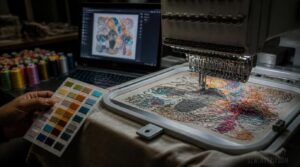
Even after you’ve matched the format to your machine, fabric, and design, you’ll still run into files that refuse to open, stitch out wrong, or lose color data somewhere along the way, and knowing how to troubleshoot those hiccups will save you a ruined hoop and a lot of wasted thread.
- Check format conversion errors first, DST loses embedded color data.
- Fix color mapping manually against your thread chart.
- Adjust stitch count if density looks off.
- Override machine settings when defaults misread.
- Update software, since outdated digitizing tools break universal format compatibility.
Frequently Asked Questions (FAQs)
What is the best file format for embroidery?
DST reads on nearly every commercial machine out there, which is why most digitizers call it the closest thing to a universal format for machine compatibility, though PES and JEF still win for color-accurate, brand-specific stitching.
Is DST or PES better?
Neither wins outright. Machine compatibility factors decide it: choose DST for commercial, cross-brand reliability and file size efficiency; choose PES for Brother/Baby Lock machines needing richer color data preservation and stronger editing flexibility during design refinement.
How do I convert a jpeg to an embroidery file?
Like turning water into wine, digitizing software transforms a flat JPEG into stitchable magic: image tracing builds outlines, then you set stitch density, underlay, thread color mapping, and pull compensation before exporting to your machine’s format.
Why do some stitch files open with wrong colors?
Wrong colors usually trace back to color palette mismatch, color indexing issues, or embedded profile conflicts, where machines substitute nearest matches, quantize hues, or apply outdated software palettes instead of honoring the design’s original thread color assignments and previews.
Is there a truly universal embroidery file format available?
No true universal format exists across brands. Every proprietary format hits machine compatibility limits, so format conversion challenges, color data preservation, and stitch density adjustments still depend on software translation accuracy when converting artwork between systems.
How do I know if a file is corrupted?
A corrupted file screams louder than a dropped bobbin. Watch for error on open, garbled content, file size mismatch, or an unexpected crash — whether it’s PES, DST, or JEF, your embroidery machine won’t tolerate missing data sections.
Conclusion
Think of these formats as dialects of a single stitching language, each brand speaking its own tongue but describing the same needle path. There’s no universal embroidery file format, and that’s fine once you know the translation rules. DST speaks to industrial machines, PES to Brother and Baby Lock, JEF to Janome.
Match the dialect to the listener, and your machine understands every word. Get this right, and compatibility stops being a mystery—it becomes muscle memory.