This site is supported by our readers. We may earn a commission, at no cost to you, if you purchase through links.
A logo can look sharp on your screen, then turn into a jagged mess once the needle starts moving. That problem usually doesn’t begin with the machine; it starts with the file.
In embroidery, clean results depend on choosing the right format at the right stage, whether that means a smooth vector for digitizing, a high-resolution PNG for reference, or a stitch file like DST or PES for the machine itself.
If you’ve been wondering what file types are best for embroidery, the answer depends on what you need to edit, convert, or run.
Get that part right, and everything else gets easier.
Table Of Contents
Key Takeaways
- Vector files (AI, EPS, SVG) are your best starting point for digitizing because they scale without blurring and give digitizers precise control over stitch paths.
- Your machine brand determines your format: Brother runs on PES, Janome needs JEF, and industrial or multi-brand setups should default to DST for its near-universal compatibility.
- Native editing formats like EMB and ART are for refining your design, while machine stitch files like DST and PES are what you actually send to the needle — don’t mix up the two.
- Before exporting anything, lock in your stitch density, simplify outlines, and normalize your color palette to avoid the most common errors that waste time and ruin runs.
Best File Types for Embroidery Explained
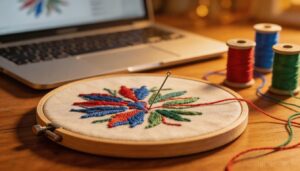
Choosing the right file type is the first step to getting great embroidery results. Each format has its own strengths, depending on how you plan to use your design.
Understanding how embroidery file formats like DST convert stitch types makes it much easier to pick the right one for your project.
Here’s what you need to know about the best options for digitizing and stitching.
Vector Formats (AI, EPS, SVG) for Digitizing
Regarding logo digitizing, vector graphics files are your best starting point — hands down. AI, EPS, and SVG files store math-based paths rather than pixels, so they scale perfectly without blurring.
Bézier curve accuracy keeps stitch lines smooth, while anchor point control lets digitizers trace shapes precisely. Smart layer naming conventions and solid color mapping strategies make converting paths into stitches far more efficient.
For professional results, consider a manual logo vectorization service.
Raster Formats (PNG, BMP, JPG) as Secondary Options
Not everyone has a vector file on hand — and that’s okay. Raster files like PNG, BMP, and high-resolution JPG can work as secondary options.
PNG is usually your best bet here: lossless compression protects edge detail, transparency handling helps with open-area designs, and its color depth keeps things accurate. BMP offers solid software compatibility, while JPG trades some detail for smaller file size.
Minimum Resolution Requirements for Raster Images
If you’re working with a high-resolution JPG or high-resolution PNG, don’t skimp on pixel density standards.
For logos, aim for 300 dpi at the print size—double that for small text or fine lines.
Monochrome line art needs 1000–1200 dpi, while halftone resolution sits best at 600–900 dpi.
Match print size exactly to avoid fuzzy stitches.
- Crisp lines make logos memorable
- Small text stays sharp, not muddy
- Accurate color holds your brand’s spirit
Native Vs. Machine Stitch File Formats
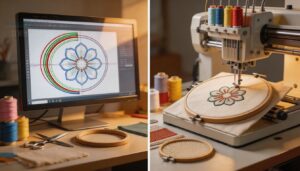
Not all embroidery files work the same way, and that distinction matters more than most beginners expect.
Some are built for editing, while others exist purely to run on a machine. Here’s how the two types break down.
Native Editing Files (EMB, ART, PXF) for Full Design Control
Think of native design files for editing and resizing as your embroidery project’s source code — touch anything without losing the original.
EMB, ART, and PXF each offer Object-Based Editing, Thread Palette Mapping, and Non-Destructive Versioning, giving you true Layered Design Control.
| Format | Key Advantage | Software Home |
|---|---|---|
| EMB | Stitch Simulation Preview | Wilcom |
| ART | Object-level anchors | Wilcom/Pulse |
| PXF | Density & gradient control | Pulse |
| EMB | Color palette re-mapping | Wilcom |
| ART | Full native embroidery file editing | Wilcom |
Embroidery file format compatibility and embroidery file standards stay intact throughout every revision.
Machine Stitch Files (DST, PES, JEF) for Direct Playback
Once your design is ready for stitching, machine stitch files like DST, PES, and JEF step in.
These formats handle Stitch Timing Control, Jump Trim Commands, and Hoop Calibration, ensuring smooth playback.
Firmware Compatibility and Memory Buffer Management matter, too.
Here’s a quick table showing machine stitch file compatibility by brand:
| Format | Machine Brand | Key Feature |
|---|---|---|
| DST | Tajima | Universal, compact |
| PES | Brother | Thread color data |
| JEF | Janome | Needle assignment |
| EXP | Bernina | Multi-color support |
| VP3 | Viking | Detailed stitch data |
When to Use Each Format Type
While you might crave full control, native files (like EMB) shine for editing and Color Accuracy, but machine stitch formats (DST, PES, JEF) win in Production Speed and Memory Usage.
Match your needs to the format—here’s a quick guide:
| Format Type | Best Use Case |
|---|---|
| Native Editing | Design tweaks, Software Compatibility |
| Machine Stitch | Fast production, Brand compatibility |
| DST | Universal, compact, Stitch Detail |
| PES | Home machines, color data |
| JEF | Fine lines, Janome machines |
Embroidery File Formats by Machine Brand

Not every embroidery machine speaks the same language, and using the wrong file format is one of the fastest ways to run into trouble. Your machine brand largely determines which formats you’ll work with day to day.
Your machine brand speaks its own file format language — use the wrong one and trouble follows fast
Here’s a breakdown of the most common formats by brand so you can match the right file to the right equipment.
Brother Machines — PES and DST
Ever wondered why Brother machines love PES and DST files? Here’s what sets them apart:
- PES files automate thread changes and embed color mapping for a smooth workflow.
- DST offers broad embroidery machine compatibility across brands.
- Stitch count limits vary, so firmware compatibility matters.
- File size impact can affect transfer speed and design complexity.
Choose wisely—your stitches depend on it!
Janome Machines — JEF and SEW
Janome machines run on JEF as their default format — and for good reason. JEF Color Stops and Thread Change Commands let your machine handle color sequencing automatically, while Hoop Size Calibration keeps everything aligned stitch by stitch.
Older models still lean on SEW, but SEW Data Constraints mean limited color support.
Always check your Janome Firmware Updates to verify embroidery file format compatibility before transferring any design.
Husqvarna Viking — VP3
Husqvarna Viking machines speak VP3 — and they’re built for serious work. With a Large Embroidery Area stretching up to 460 by 450 millimeters, this embroidery file format manages big, detailed projects without breaking a sweat.
What makes VP3 stand out for machine stitch file compatibility by brand:
- Built-in Design Projection previews stitch placement before you sew
- Automatic Underlay Settings protect fabric integrity on bulky materials
- MySewnet Cloud Integration transfers designs wirelessly with ease
The Metal Frame Vibration control keeps everything steady at speed, so your embroidery machine compatibility with file types stays reliable from first stitch to last.
Bernina and Melco — EXP and ART
Bernina and Melco share a tight partnership — and their embroidery file format ecosystem reflects that. ART files give you full editing control in Bernina software, while EXP manages machine playback. The key is knowing which EXP you’re using.
| Feature | Bernina USB EXP | Melco EXP |
|---|---|---|
| Color Chart Integration | Yes | Software-defined |
| Home vs Commercial | Home machines | Commercial production |
| ART to EXP Conversion | Supported | Supported |
Always back up your ART file before exporting — Design Backup Practices save headaches. Cross‑Brand Compatibility between both ecosystems makes machine stitch file compatibility by brand surprisingly smooth.
Universal DST for Industrial and Multi-Brand Use
While Bernina and Melco keep things brand-tight, DST plays a different game entirely — it’s the universal language of commercial embroidery machines.
- Cross-Brand Workflow runs smoothly when DST processes Tajima, Melco, and Bernina in one batch
- Industrial Batch Processing cuts setup time across machine fleets
- Stitch Consistency Assurance keeps layouts identical run after run
- Color Mapping Standards align thread sequences before export
- Firmware Compatibility Checks confirm DST reads cleanly on every controller
The standardization of DST format across machines makes machine stitch file compatibility by brand nearly straightforward.
Is DST or PES Better for Embroidery?
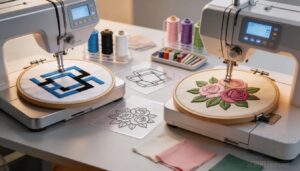
DST and PES are the two formats you’ll hear about most, and the debate between them comes up constantly in embroidery circles. The honest answer is that neither one wins across the board — it really depends on your machine and what you’re making.
Here’s a closer look at how they stack up.
DST Strengths — Wide Compatibility and Compact Size
While you’re chasing reliable results, DST stands out for Cross-Brand Support and Small File Transfer. Its Efficient Stitch Encoding means Fast Machine Parsing and a Low Memory Footprint, making it perfect for batch jobs. Thanks to the standardization of DST format across machines, you get smooth machine stitch compatibility and reliable machine readable embroidery files.
| DST Benefit | Practical Impact | Why It Matters |
|---|---|---|
| Cross-Brand Support | Works on many machines | Simplifies workflow |
| Small File Transfer | Quick uploads/downloads | Saves production time |
| Fast Parsing | Instant machine start | Minimizes setup delays |
| Low Memory Footprint | Manages big batches easily | Prevents storage overload |
PES Strengths — Thread Color Data and Home Machine Use
Switching gears from DST’s universal appeal, PES shines in home embroidery. With Color Palette Integration and Thread Brand Matching, you get precise thread colour information—right down to brand codes.
Home Machine Compatibility means your Brother machine reads PES effortlessly, and Efficient Color Sequencing plus Embedded Thread Charts simplify setup.
Exporting designs for commercial vs home use? PES keeps things simple and accurate.
Choosing Based on Design Complexity and Machine Type
When you’re weighing DST against PES, look at your embroidery machine and project needs.
Large, intricate logos push Stitch Density Limits and demand Thread Count Management—DST manages these well, especially for Multi-Needle Compatibility and Design Size Scaling.
PES fits home setups, but Machine Memory Constraints matter for bigger designs.
Choosing the right embroidery file format means balancing Embroidery file standards with your design optimization goals.
How to Convert and Prepare Embroidery Files
Getting your embroidery files ready is all about keeping the details sharp and your machines happy. A few smart steps can make the difference between a smooth stitch-out and a frustrating mess.
Here’s what you need to know before you hit export or start converting your designs.
Converting Files Without Losing Stitch Quality
Want every detail to stitch out just as you planned? The secret is a careful file conversion process that keeps your design’s heart intact.
For excellent results:
- Use lossless conversion for stitch density preservation
- Protect color stop integrity with full thread palette mapping
- Validate with a test stitch
- Maintain design resizing without loss
- Prioritize vector over raster graphics in embroidery
Recommended Software for File Conversion
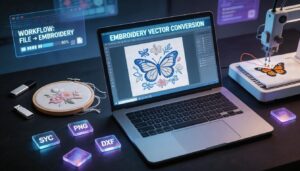
Even with a solid design, picking the right file conversion tools and utilities makes all the difference. For embroidery, CloudConvert API and Zamzar Batch handle vector-to-machine format jobs, while Convertio OCR is handy for tricky image conversions.
ImageMagick CLI works well for batch raster tweaks, and FFmpeg Video covers rare needs.
Here’s a quick comparison:
| Tool | Specialty | Automation Features |
|---|---|---|
| CloudConvert API | Vector, embroidery files | Workflow integration |
| Zamzar Batch | Bulk format conversion | Batch processing |
| Convertio OCR | Image, text extraction | Web-based, easy access |
| ImageMagick CLI | Raster edits, batch jobs | Command line scripting |
Design Optimization Tips Before Exporting
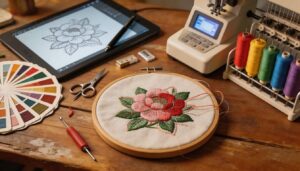
Before you hit export, a few quick optimizations can save you from serious headaches later. Think of it as a final quality check — your design deserves it.
- Lock in your stitch density within the fabric-recommended range.
- Simplify outlines using outline simplification to remove tiny gaps.
- Normalize your color palette to match your machine’s thread catalogue.
- Apply layer consolidation to eliminate duplicate stitch sequences.
Common Format Errors and How to Prevent Them
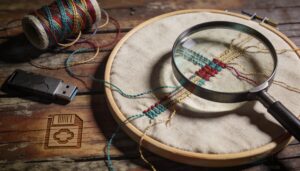
Ever lost hours to a file that won’t open or stitches that wander off course?
That’s often down to color code errors, unsupported formats, or file corruption.
To dodge these pitfalls, use a file type selection guide, reliable conversion tools, and stick to embroidery file standards.
Here’s a quick cheat sheet:
| Error Type | Cause | Prevention Tip |
|---|---|---|
| Color code errors | Format mismatch | Normalize color palette |
| Thread count errors | Incorrect conversion | Use trusted file conversion tools |
| Stitch direction errors | Proprietary extensions | Double-check file compatibility |
| File corruption | Bad transfer | Backup and verify every export |
Frequently Asked Questions (FAQs)
What are the different embroidery file formats?
Imagine your embroidery design as a passport—each file format, from DST and PES to JEF, carries unique Color Thread Mapping, Stitch Density Control, and File Metadata Standards, shaping Embroidery file standards for Cross-Platform Compatibility and Format Evolution History.
What is the best file for embroidery?
DST is the most universally compatible embroidery file, working across nearly every machine brand. For color-rich designs, PES is the better pick, especially with Brother machines.
What format should I use for my embroidery machine?
The format you need depends on machine brand. Brother owners rely on PES, Janome users need JEF, and industrial setups run DST.
Match the file to your machine — it’s that straightforward.
What file type should I use for embroidery?
You should match your machine’s needs: use PES for thread color mapping and stitch density control on Brother, JEF for Janome, EXP for Bernina, or DST for cross-platform compatibility and workflow automation.
File size impact matters for complex designs.
Is DST or PES better?
Neither is universally better — it depends on your machine and workflow.
PES wins for color fidelity on Brother machines; DST wins for production speed and broad machine memory compatibility across brands.
What file format is best for embroidery?
Choosing the best file format for embroidery depends on your machine and design needs.
PES offers rich color data and easy editing, while DST is universal, compact, and ideal for multi-brand setups—each affects stitch density control and file size impact.
Can a SVG file be used for embroidery?
Picture SVG as a blueprint—its vector graphics files are ideal for digitizing, but embroidery machines can’t read them directly.
You’ll need file conversion tools for SVG Path Interpretation, Stitch Density Tuning, Thread Color Mapping, and Test Stitch Validation.
Is an EPS file an embroidery file?
An EPS file isn’t an embroidery file—EPS is a vector graphics format, so stitch data is missing.
You’ll face thread mapping and color conversion challenges.
Software handling EPS requires file conversion tools to export embroidery files for stitching.
What is a PES file for embroidery?
A PES file is Brother’s native embroidery format. It carries stitch paths, color stops, and machine commands — basically a blueprint your machine reads and executes, stitch by stitch, without guesswork.
How do I convert embroidery files between formats?
To convert embroidery files between formats, use tools like Embird or SewWhat-Pro. They handle Stitch Order Preservation, Thread Palette Mapping, and Metadata Retention.
Always check hoop size adjustment and Multi-Needle Export for compatibility across machines and proprietary file extensions.
Conclusion
Choosing the right file type for embroidery is like selecting the perfect thread color – it sets the tone for a spotless finish. With the right format, your designs will stitch out smoothly, and your machine will hum along.
Regarding what file types are best for embroidery, now you know the essentials.
By applying this knowledge, you’ll gain precise control and stunning results. Your embroidery projects will thank you, and so will your machine.